3. Booting a Jetstream Computer Instance for your use!
What we’re going to do here is walk through starting up a computer (an “instance”) on the Jetstream service.
- Jetstream is run by NSF and provides elastic cloud computing services.
- “Cloud” computing is a fancy word for being allowed to temporarily use someone else’s computer somewhere else with full administrative privaleges to install whatever software we want.
- Sometimes we need to use computing resources that are larger than our personal computers. Cloud computing lets us decide how much capacity we want to be using.
If you would like to read more about cloud computing, see this Carpentry Cloud Computing lesson.
Below, we’ve provided screenshots of the whole process. The important areas to fill in are circled in red or pointed out with arrows.
Some of the details may vary – for example, if you have your own XSEDE account, you may want to log in with that – and the name of the operating system or “Image” may also vary from “Ubuntu 18.04” or “DIBSI 2018” depending on the workshop.
3.1. Resources
If you are interested in applying for Jetstream allocation credits, that is great! Here is our proposal that we submitted for this workshop. There are several types of allocations, education (which we applied for), start-up and research. Here is a collection of successful proposals for all three types. We have found the process to be very easy. Start-up allocations for ~50,000 SU come before applying for full research allocations.
First, go to the Jetstream application at https://use.jetstream-cloud.org/application.
Now:
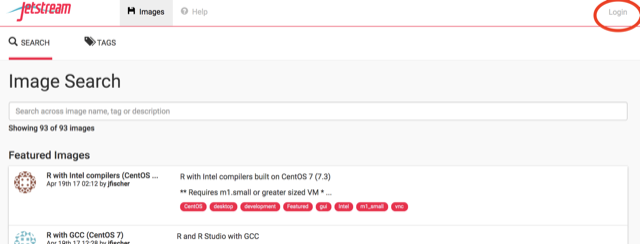
3.3. Use “XSEDE”
Choose “XSEDE” as your account provider (it should be the default) and click on “Continue”.
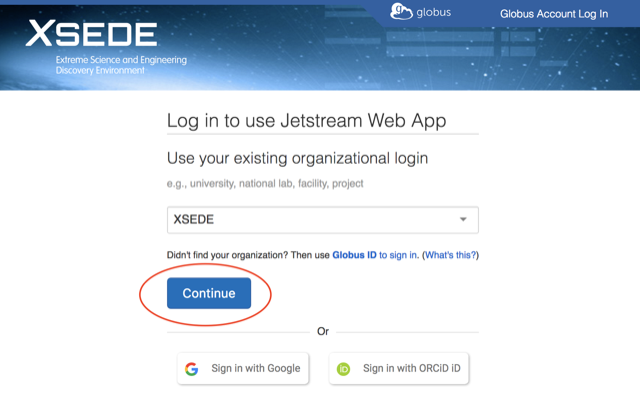
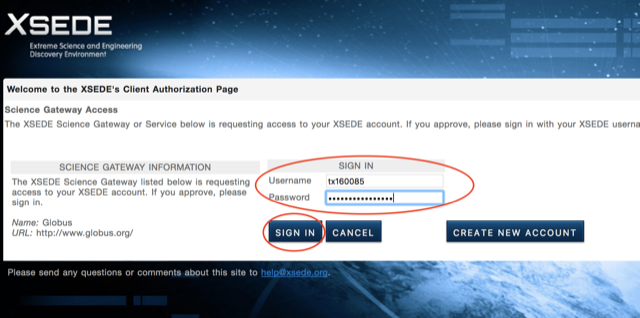
3.4. Fill in the username and password and click “Sign in”
Fill in the username and then the password (which we will tell you in class).
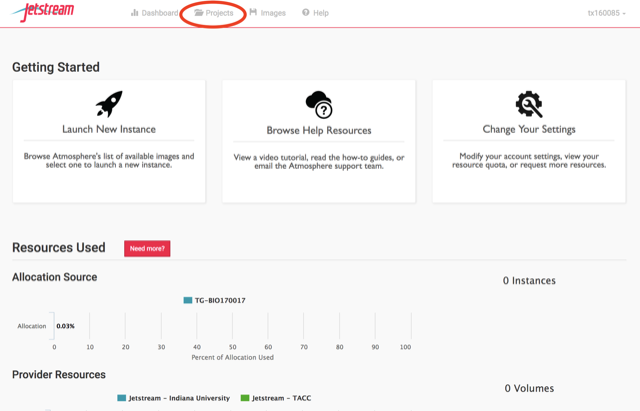
3.5. Select Projects and “Create New Project”
Now, this is something you only need to do once if you have your own
account - but if you’re using a shared account like dibbears, you will
need a way to keep your computers separate from everyone else’s.
We’ll do this with Projects to keep things that belong to you.
Click on “Projects” up along the top.
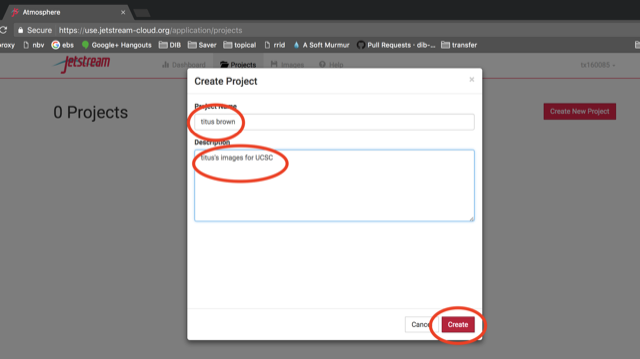
3.6. Name the project for yourself, click “create”
Enter your name into the Project Name, and something simple like “GIGA bioinfo” into the description. Then click ‘create’.
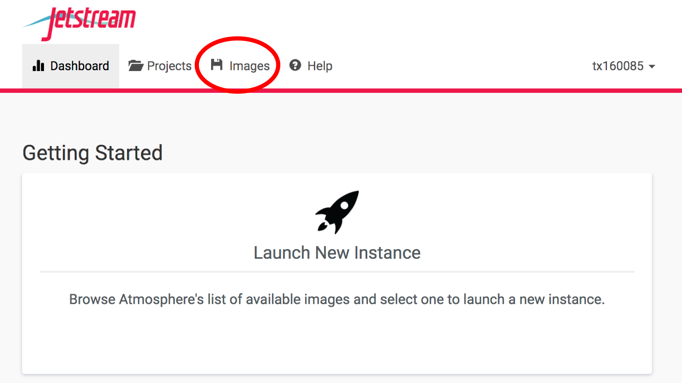
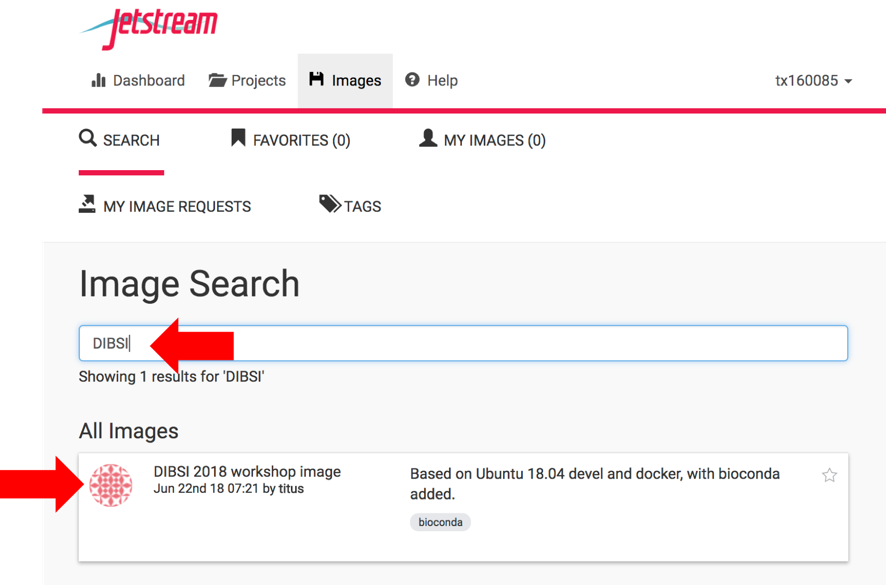
3.8. Find the “DIBSI 2018 workshop image” image, click on it
Enter “DIBSI” into the search bar. Make sure the ‘Show All’ tab is selected. Make sure it’s from June 22nd, 2018 by Titus Brown. This images is based on Ubuntu 18.04 devel and docker, with Rstudio and bioconda package manager added. Instructions for how Titus set this up are here.
An “image” refers to the resources that are pre-loaded into your computing workspace on your instance. Think of it like apps that come with your phone before you add new ones on your own. Loading the DIBSI image that Titus built before the workshop prevents us from having to choose our operating distrubution and download frequently-used packages on our own, and makes sure that everyone has the same basic computing environment. That ensures that the commands we tell you to use will work, and makes it (slightly) easier for TAs to figure out what’s wrong if you run into error messages.
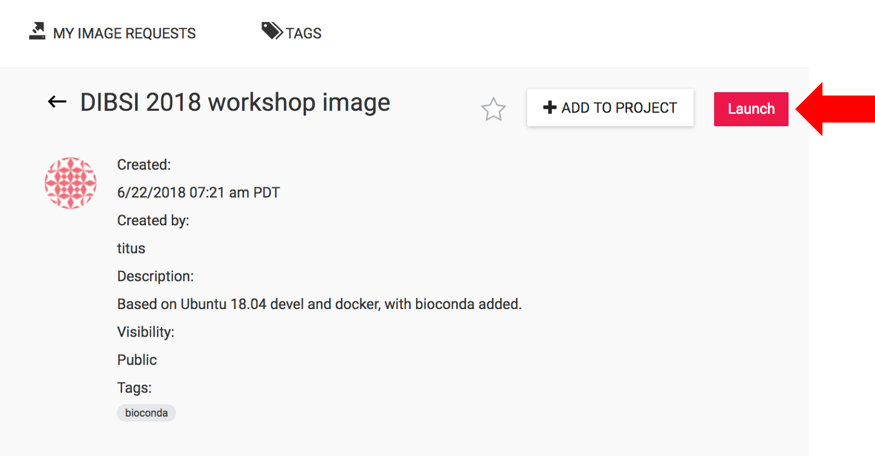
Launch
3.9. Name it something simple
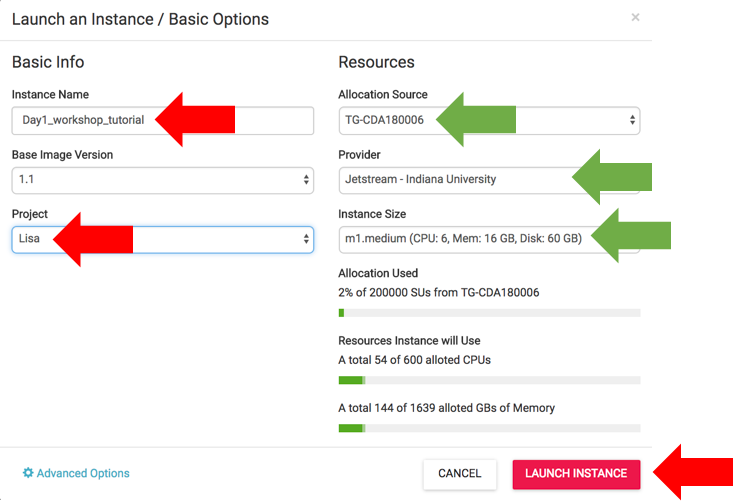
Change the name after what we’re doing - “Day1_workshop_tutorial”, for example, but it doesn’t matter. Pull down the drop-down menu under ‘Project’ to select your name. Then make sure the appropriate Resources are selected. You probably won’t have to change these. The ‘Allocation Source’ will already be selected. (This is our XSEDE allocation grant ID.) The ‘m1.medium’ instance size will already be chosen. This is the minimum instance size. A larger instance can be selected, depending on what we will be doing. The ‘Provider’ will be randomly chosen as either ‘Jetstream - Indiana University’ or ‘Jetstream - TACC’.
3.10. Wait for it to become active
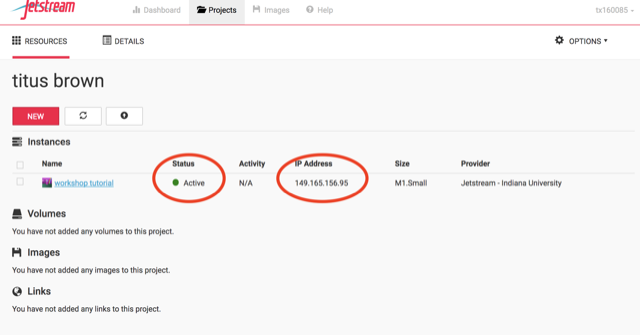
It will now be booting up! This will take 2-15 minutes, depending. Just wait! Don’t reload or anything. When it is ready, the colored dot under “Status” will turn green and look like this:
3.11. Click on your new instance to get more information!
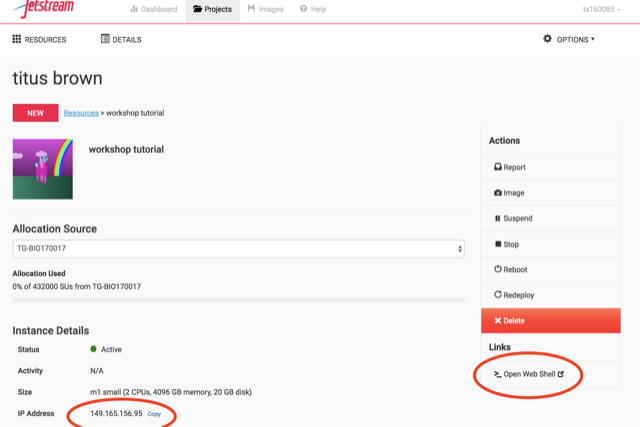
Now, finally, you can login to the instance! Note that you’ll need to download and use the private key file pinned in the #bioinfo-workshop-2018 channel in slack. The username will be either, e.g. dibbears, diblions or dibtiger. Use these log-in instructions for using a private-key.
If you cannot access the terminal using the private key, a web shell is available:
3.12. Miscellany
There’s a possibility that you’ll be confronted with this when you log in to jetstream:
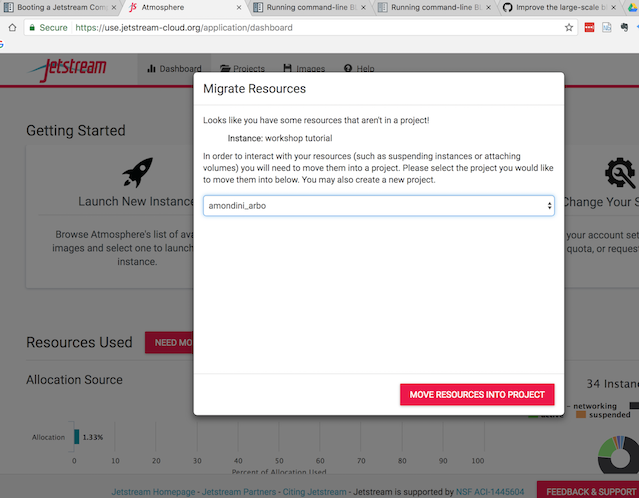
A refresh of the page should get you past it. Please try not to actually move any instances to a new project; it’s probably someone else’s and it could confuse them :)
3.13. Suspend your instance
You can save your workspace so you can return to your instance at a later time without losing any of your files or information stored in memory, similiar to putting your physical computer to sleep. At the Instance Details screen, select the “Suspend” button.
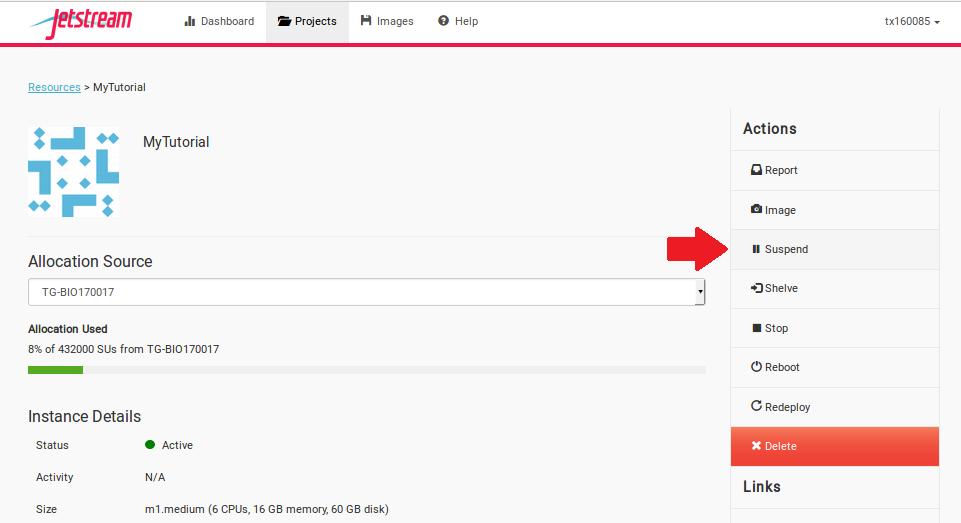
This will open up a dialogue window. Select the “Yes, suspend this instance” button.
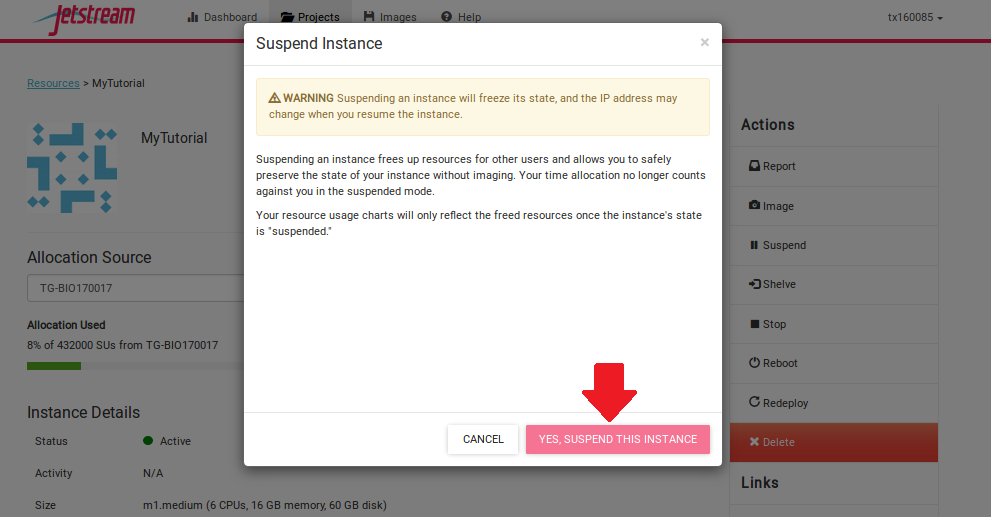
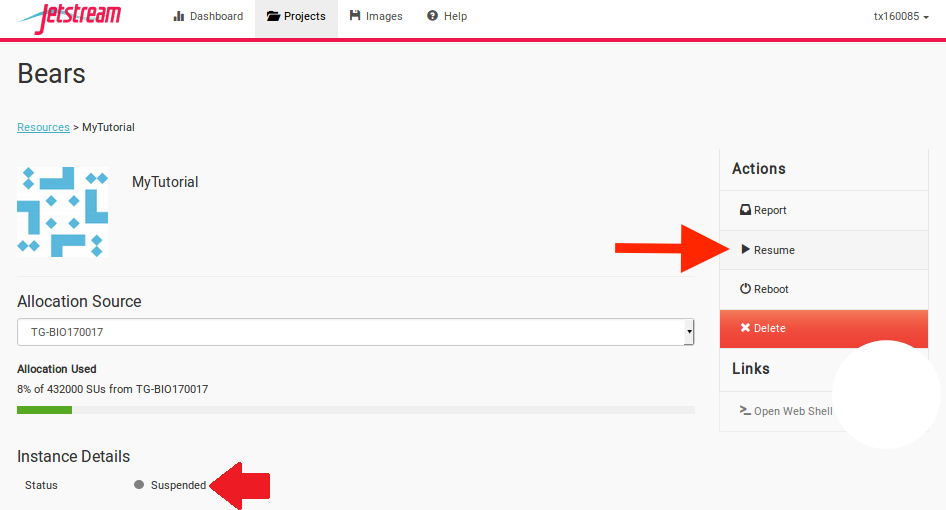
It may take Jetstream a few minutes to process, so wait until the progress bar says “Suspended.”
3.13.1. Resuming your instance
To wake-up your instance, select the “Resume” button.
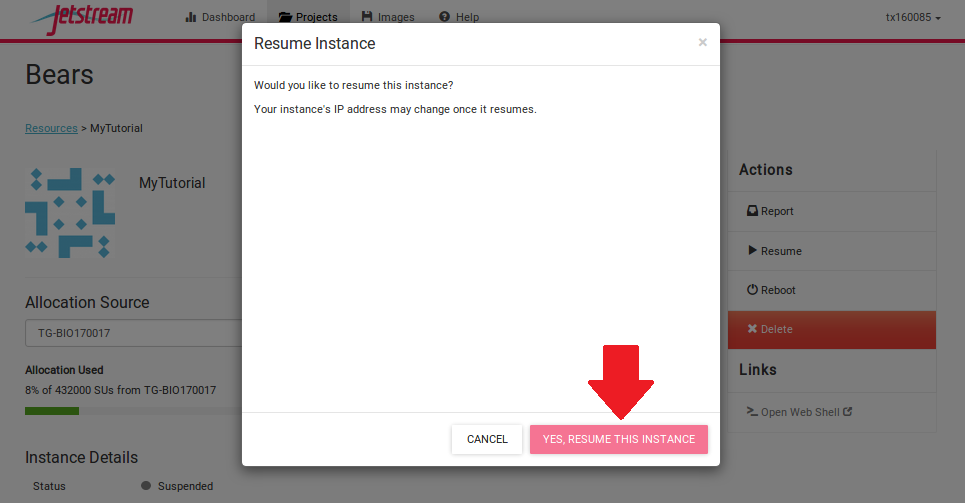
This will open up a dialogue window. Select the “Yes, resume this instance” button.
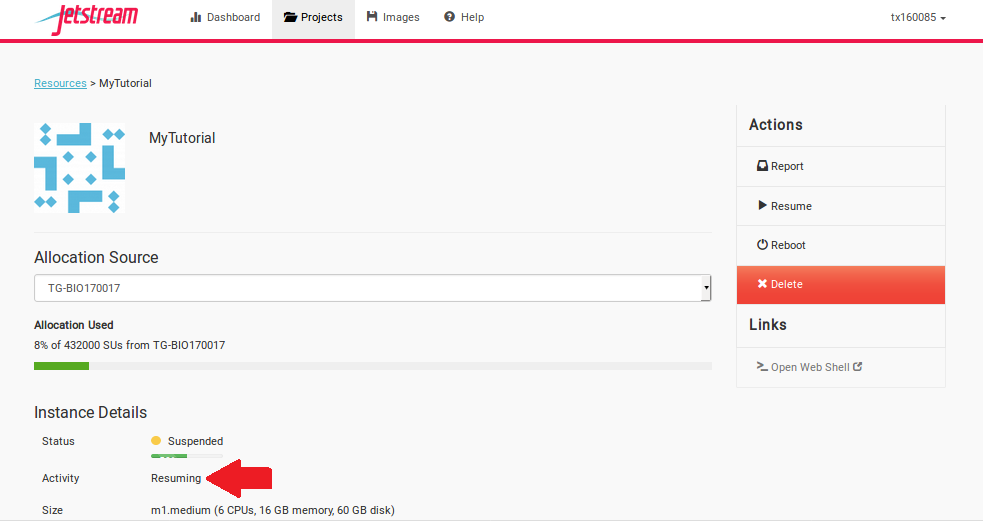
It may take Jetstream a few minutes to process, so wait until the progress bar says “Active.”
3.14. Shutting down your instance
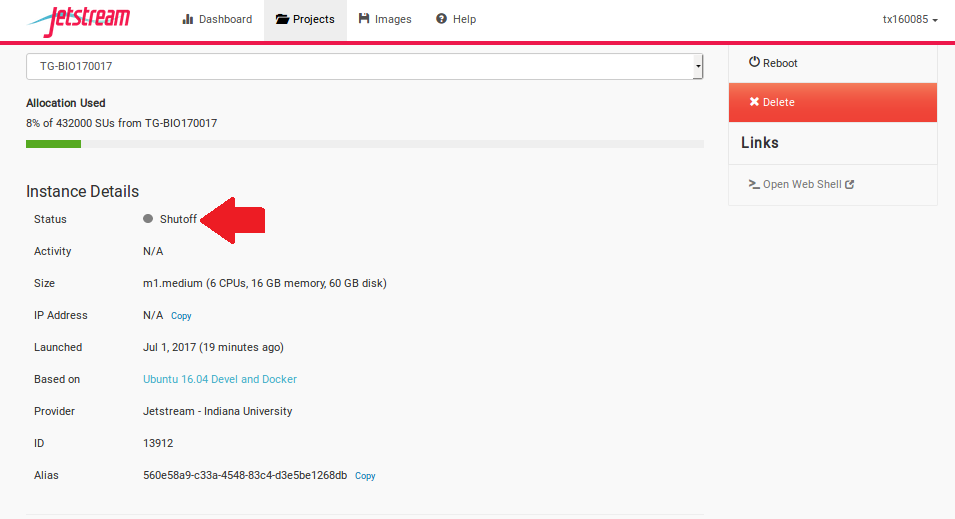
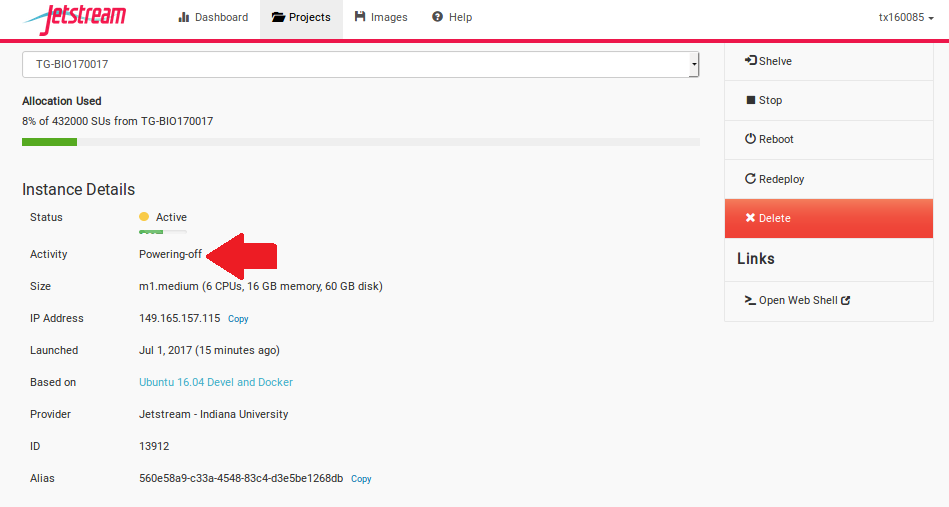
You can shut down your workspace so you can return to your instance another day without losing any of your files, similiar to shutting down your physical computer. You will retain your files, but you will lose any information stored in memory, such as your history on the command line. At the Instance Details screen, select the “Stop” button.
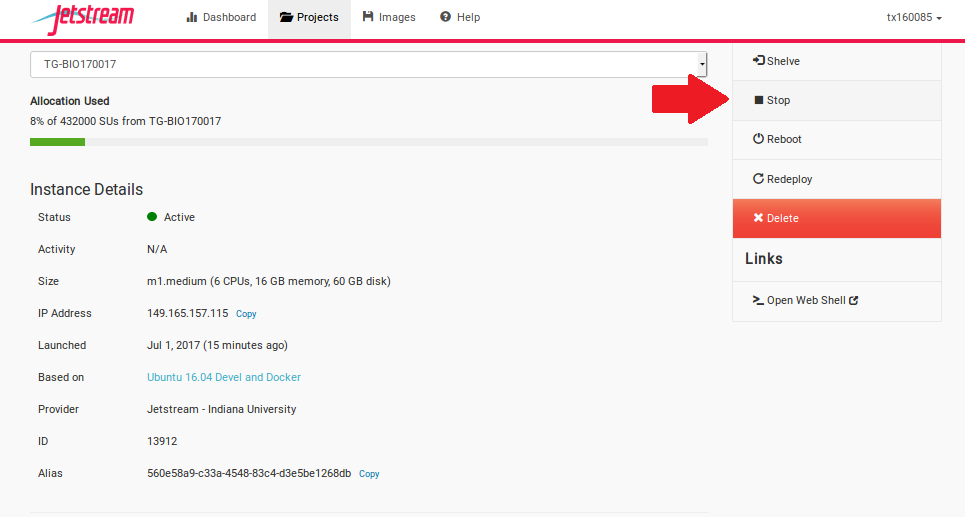
This will open up a dialogue window. Select the “Yes, stop this instance” button.
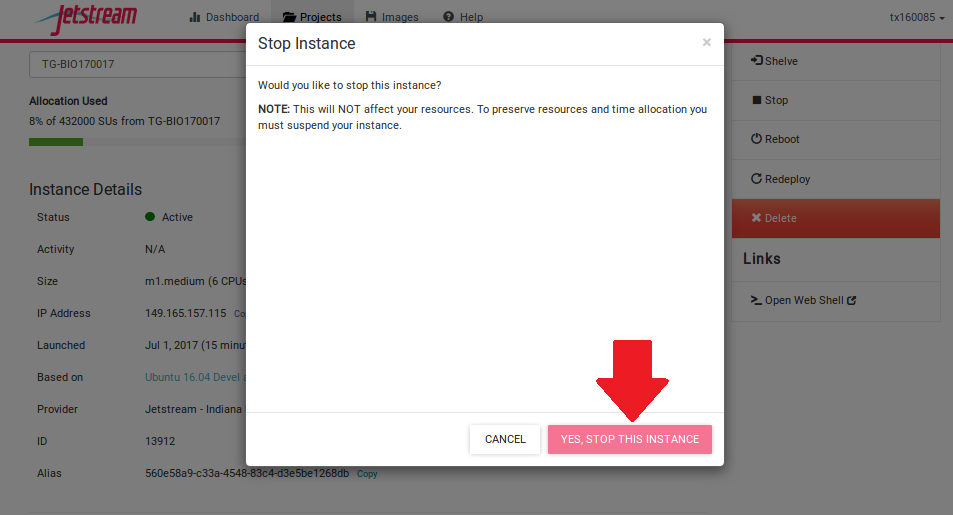
It may take Jetstream a few minutes to process, so wait until the progress bar says “Shutoff.”
3.14.1. Restarting your instance
To start your instance again, select the “Start” button.
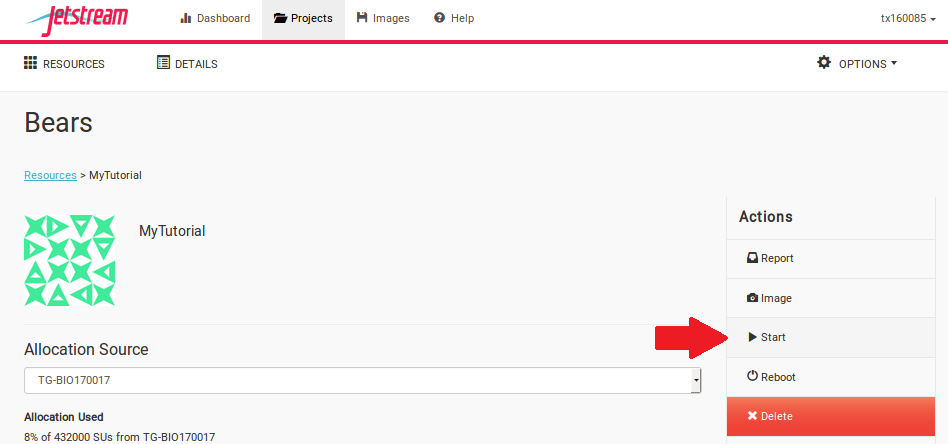
This will open up a dialogue window. Select the “Yes, start this instance” button.
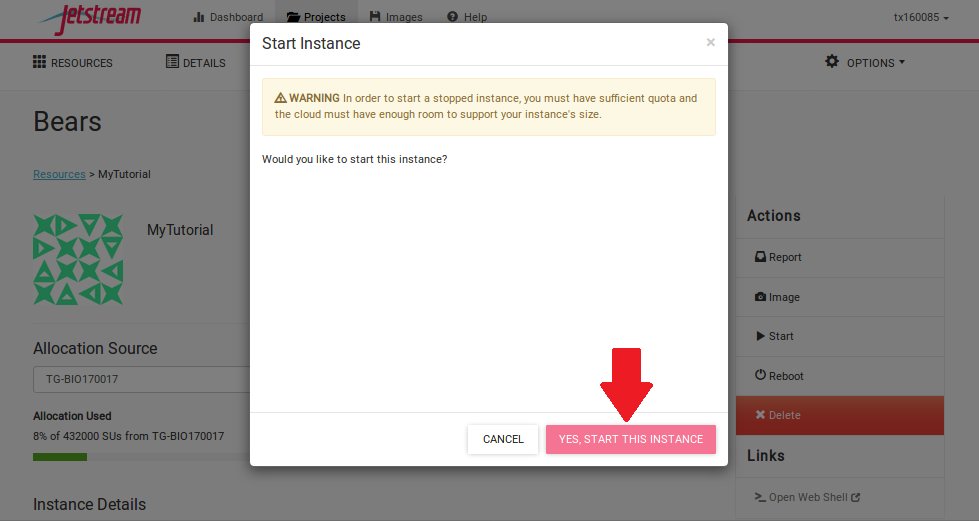
It may take Jetstream a few minutes to process, so wait until the progress bar says “Active.”
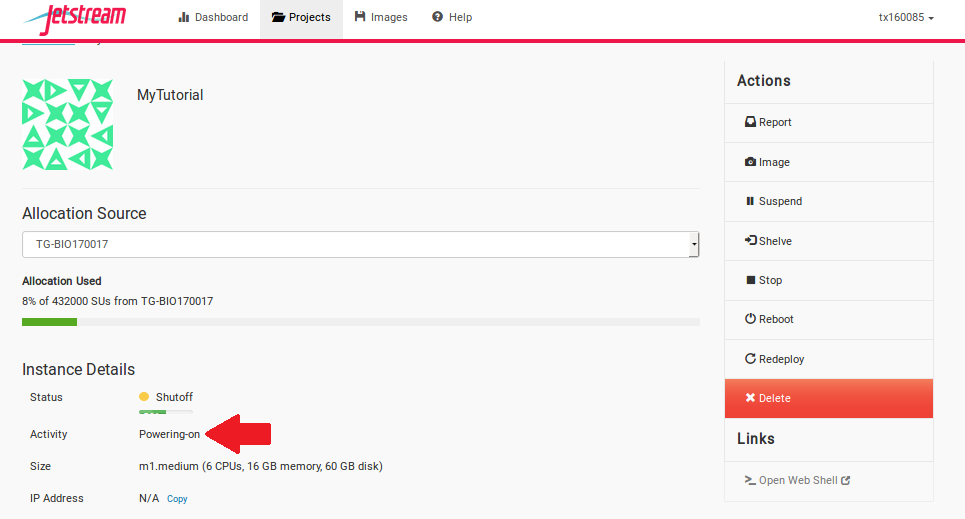
3.15. Deleting your instance
To completely remove your instance, you can select the “delete” buttom from the instance details page.
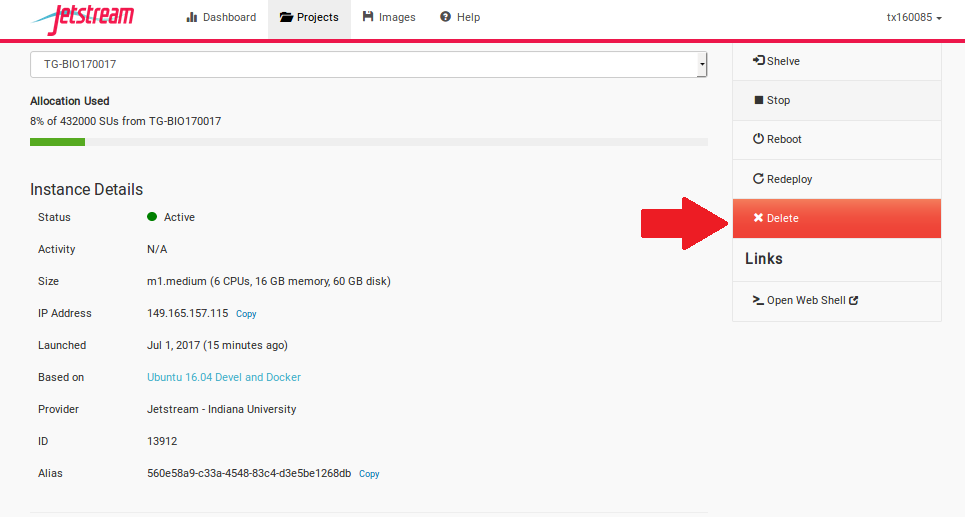
This will open up a dialogue window. Select the “Yes, delete this instance” button.
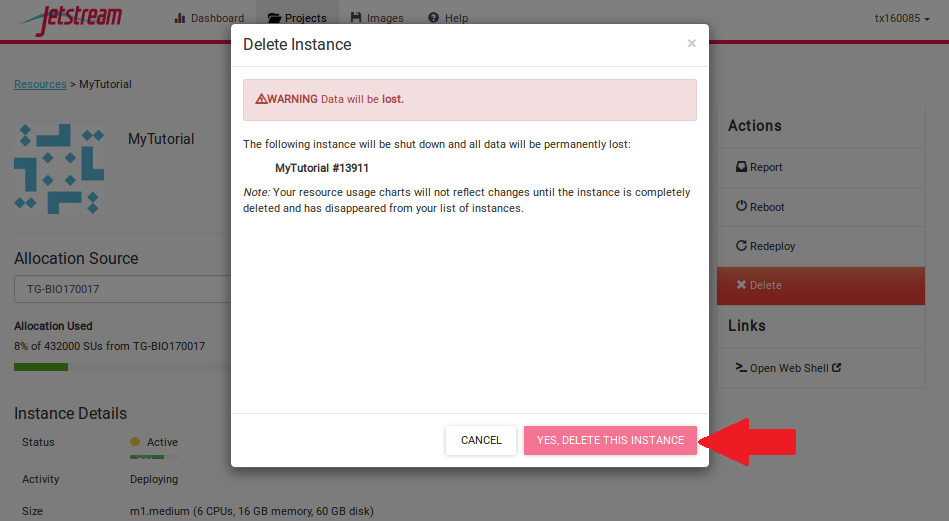
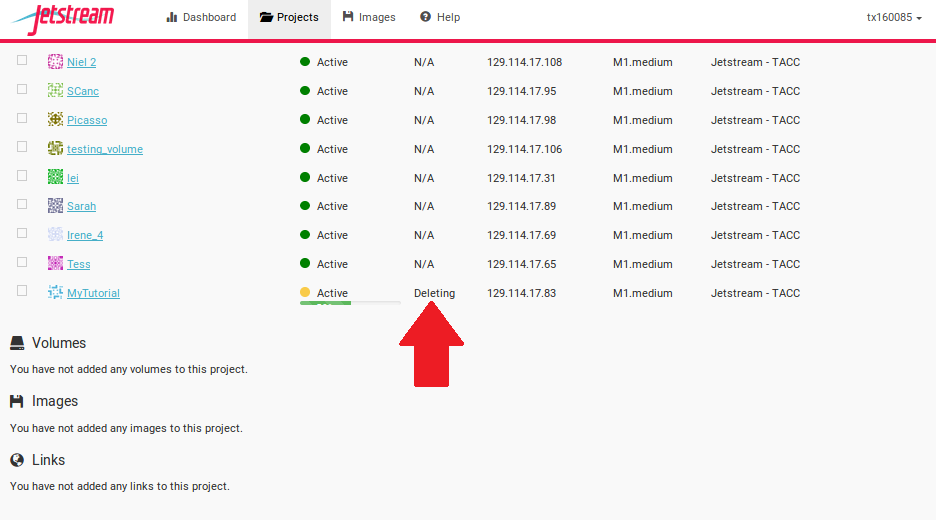
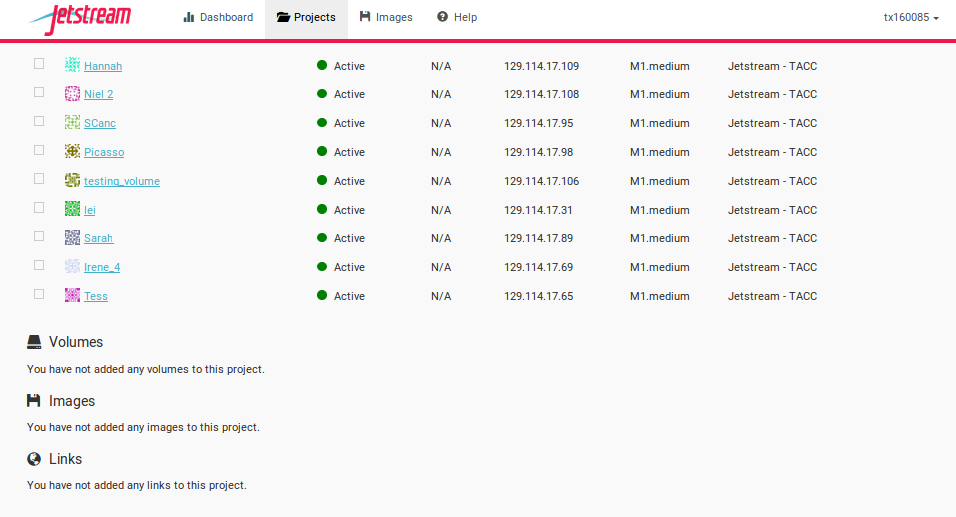
It may take Jetstream a few minutes to process your request. The instance should disappear from the project when it has been successfully deleted.